
FiveM DMA setup guide
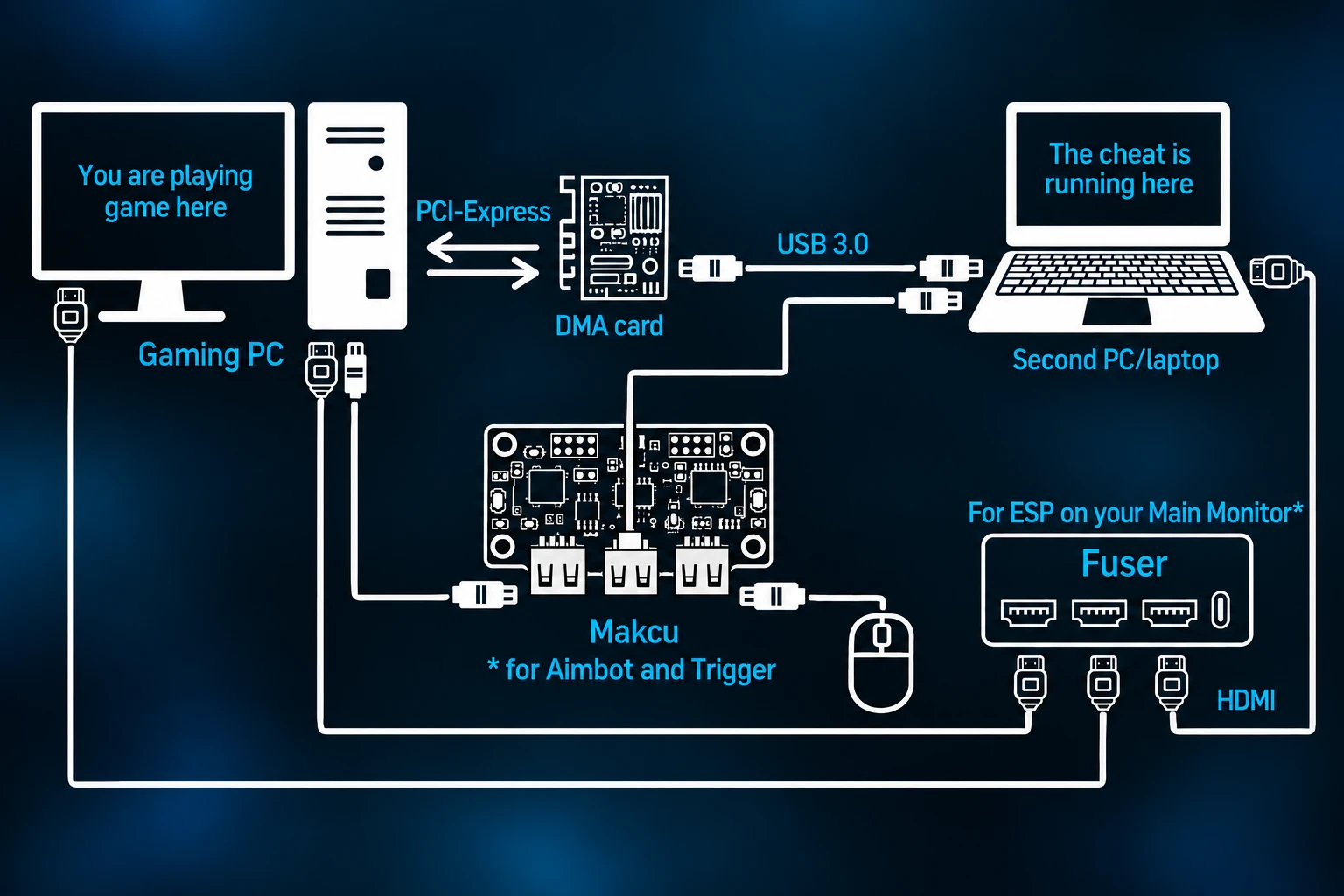
A DMA setup is the best way to be & remain undetected. Your gaming PC runs FiveM, and a mini PC or laptop runs TokyoHook. Here is how every part connects.
What you need
- A TokyoHook license key. You get it when you buy on Tokyo Market.
- A DMA card. It goes in a free PCIe slot on your gaming PC.
- A second PC. A mini PC or laptop is enough. TokyoHook runs here, not on your gaming PC.
- An input device for triggerbot, and for aimbot unless you use Memory Aim: Makcu, KMBOX B, KMBOX NET, Ferrum or Arduino.
- A Fuser if you want ESP on the monitor you play on. Optional, but recommended.
How DMA works
DMA stands for direct memory access. The DMA card sits in your gaming PC and reads game memory, then sends that data to the second PC. TokyoHook reads it there and draws ESP, picks aimbot targets and runs exploits. Nothing from TokyoHook is installed on your gaming PC.
-
Download the loader
On the second PC, go to download.tokyohook.com and enter your license key to download the TokyoHook loader.
Don't have a key yet? Get TokyoHook
-
Create your account
Open the loader and click Register. Fill in:
- Username, at least 3 characters.
- Discord ID, your numeric Discord user ID.
- Password, at least 4 characters.
- License key, the one you used to download the loader.
Click Register. When you see "Account created! Sign in below.", log in with your username and password. Tick Remember me to skip this next time.
Your account is linked to the PC you register on, so register on the machine that will run TokyoHook. To add time later, click Redeem in the loader and enter a new key.
-
Connect your input device
Triggerbot, and aimbot in hardware mode, move your mouse through an input device. Aimbot's memory mode doesn't need one. With a Makcu, plug your mouse into the Makcu, connect the Makcu to the gaming PC, and connect its other USB port to the second PC.
Once TokyoHook is running, open Settings > Mouse Input, pick your device type and press Connect:
- Makcu, KMBOX B, Ferrum and Arduino connect over USB. Enter the device's COM port number.
- KMBOX NET connects over your network. Enter its IP address, port and UUID.
Use Test Click and Test Move under Diagnostics to confirm it works.
-
Load TokyoHook
Join a FiveM server on the gaming PC. In the loader, select the TokyoHook build and click Load. The loader downloads the latest files and shows "Injected!" when TokyoHook is running.
The menu opens automatically. Set up your input device as above, turn on ESP, silent aim and anything else you want, and save your setup in Configs so it loads next time.
-
Fuse your monitors
Without a Fuser, ESP shows on the second PC's screen. To see it on the monitor you play on, run HDMI from the gaming PC and from the second PC into the Fuser, then connect the Fuser's output to your main monitor.
Once TokyoHook is running, open Settings > General > Display and choose the display connected to the Fuser. The menu and overlay move there and match its resolution.
Common questions
Do I need a Fuser for a FiveM DMA setup?
Only if you want ESP on the monitor you play on. Without a Fuser, ESP shows on the second PC's screen and everything else works the same.
Which input devices work with TokyoHook?
Makcu, KMBOX B, KMBOX NET, Ferrum and Arduino. You need one for triggerbot, and for aimbot unless you use the Memory aim method.
Does TokyoHook run on my gaming PC?
No. TokyoHook runs on your second PC, mini PC or laptop. The gaming PC only has the DMA card installed.
Are fusers detected in PC Checks?
Yes & no, it depends what fuser you have & it all depends on a thing called EDID. Without getting too in depth, basically you want the fuser to show as your real monitor & EDID is the unique number that makes your monitor appear as this. Every Fuser we sell, automatically does this for you.
Try the menu before you buy
Every setting from this guide is in the browser preview, including Mouse Input and Display.